Main Guide:How to Get the Most Out of Your Plaud Note: A Complete Guide to Customer Support, Recording Quality, Portability, and Design Related:Plaud Note Setup Guide: AI Summary, Meeting Recording, and Personal Productivity Tips
How to Get the Most Out of Plaud Note: AI Summary, Transcription, and To-Do Features Explained
If you've ever walked out of a meeting, a lecture, or a client call wishing you had a perfectly organized breakdown of everything that was discussed — complete with action items and intelligent insights — then you already understand the problem Plaud Note was built to solve.
Plaud Note is an AI-powered recording device that captures audio and transforms it into structured transcriptions, AI-generated summaries, and actionable to-do checklists. It's compact, intuitive, and designed for professionals, students, and creatives who need transcription accuracy and intelligent note-taking without the hassle of manual work.
But like any powerful tool, knowing how to use it properly is the difference between a good experience and a great one. Many users — even those who rate Plaud Note highly — discover features they didn't know existed, or run into minor friction points that are easily resolved with the right workflow.
In this comprehensive guide, you'll learn:
- How to set up your Plaud Note for optimal recording quality
- How to leverage the AI summary feature for precise, structured breakdowns
- How to use the to-do checklist to stay on top of action items
- How to ask deeper questions of your transcript using AI
- How to export and distribute your notes (including workarounds for PDF and Word formats)
- Tips, best practices, and common mistakes to avoid
Whether you're a first-time user or someone looking to unlock Plaud Note's full potential, this guide has you covered.
Prerequisites: What You Need Before Getting Started
Before diving into the step-by-step instructions, make sure you have the following:
- Plaud Note device — fully charged and updated to the latest firmware.
- Plaud Note mobile app — downloaded and installed on your iOS or Android device. Ensure it's updated to the latest version for the best ease of use and access to the newest features.
- A Plaud account — registered and logged in within the app.
- A stable internet connection — required for AI processing, including transcription, AI summary generation, and AI-powered Q&A.
- A clear recording environment (recommended) — while Plaud Note handles various conditions well, quieter environments yield better transcription accuracy.
Optional but helpful:
- A Bluetooth connection between your device and phone for seamless syncing.
- Familiarity with your phone's sharing and export features.
Step-by-Step Guide to Using Plaud Note Like a Pro
Step 1: Position and Start Your Recording
Placement matters more than most people realize. For the best transcription accuracy, follow these positioning guidelines:
- In a meeting: Place the Plaud Note in the center of the table, or as close to the primary speaker(s) as possible.
- For a one-on-one conversation: Attach it to your phone case (if using the MagSafe-compatible model) or set it on the surface between you and the other person.
- For phone calls: Use the phone call recording mode, attaching Plaud Note directly to the back of your phone.
Once positioned, press the recording button on your Plaud Note device. You'll see a subtle LED indicator confirming the recording has started.
Pro tip: Do a 5-second test recording in your environment first and play it back. This helps you identify any background noise issues before your actual meeting or conversation begins.
Step 2: Sync Your Recording to the App
After your recording session ends:
- Open the Plaud Note app on your phone.
- Ensure Bluetooth is enabled.
- The app should automatically detect new recordings. If it doesn't, pull down to refresh or tap the sync icon.
- Select the recording you want to process and tap Sync.
Depending on the length of the recording, syncing may take a few minutes. Keep the app open and your phone near the device during this process.
Step 3: Generate the AI Transcription
Once your recording is synced:
- Tap on the recording within the app.
- Select Transcribe (or the app may begin this automatically depending on your settings).
- Wait for the AI to process the audio into text.
The transcription will appear as a time-stamped, speaker-identified text document. This is where many users first notice just how precise the breakdown is — as one satisfied user put it, "The breakdown is point on and precise."
Key things to check:
- Speaker labels: Are they correctly assigned? You can manually rename speakers for future reference.
- Timestamps: Use these to jump back to specific moments in the audio if you need to verify anything.
- Accuracy: Review the transcript for any misheard words, especially technical jargon or proper nouns.
Step 4: Use the AI Summary for Structured Insights
This is where Plaud Note truly shines. After transcription:
- Tap the AI Summary button (often represented by a sparkle or brain icon).
- Choose your preferred summary template. Options typically include:
- Meeting notes — structured with agenda items, key decisions, and action items
- General summary — a condensed overview of the main points
- Lecture notes — organized by topic and key takeaways
- Wait for the AI to generate the summary.
The AI summary feature doesn't just condense your transcript — it organizes it intelligently. You'll get headers, bullet points, and clearly delineated sections that make it easy to scan and share.
Users consistently praise this feature for its precision. The AI suggestions embedded within the summary can highlight things you might have missed during the live conversation, making it an invaluable second set of ears.
Step 5: Review and Use the To-Do Checklist
One of the most loved features is the auto-generated to-do checklist:
- After the AI summary is generated, scroll down to the Action Items or To-Do section.
- You'll see a checklist of tasks extracted from the conversation.
- Tap on individual items to mark them as complete, edit them, or add notes.
This feature is a game-changer for accountability. Instead of manually writing down every task mentioned in a meeting, the AI extracts them for you. As one user noted, "Love the to do checklist."
Best practice: Review the to-do list immediately after the meeting while context is fresh. Add any items the AI may have missed and assign deadlines if your workflow supports it.
Step 6: Ask In-Depth Questions from the Transcript
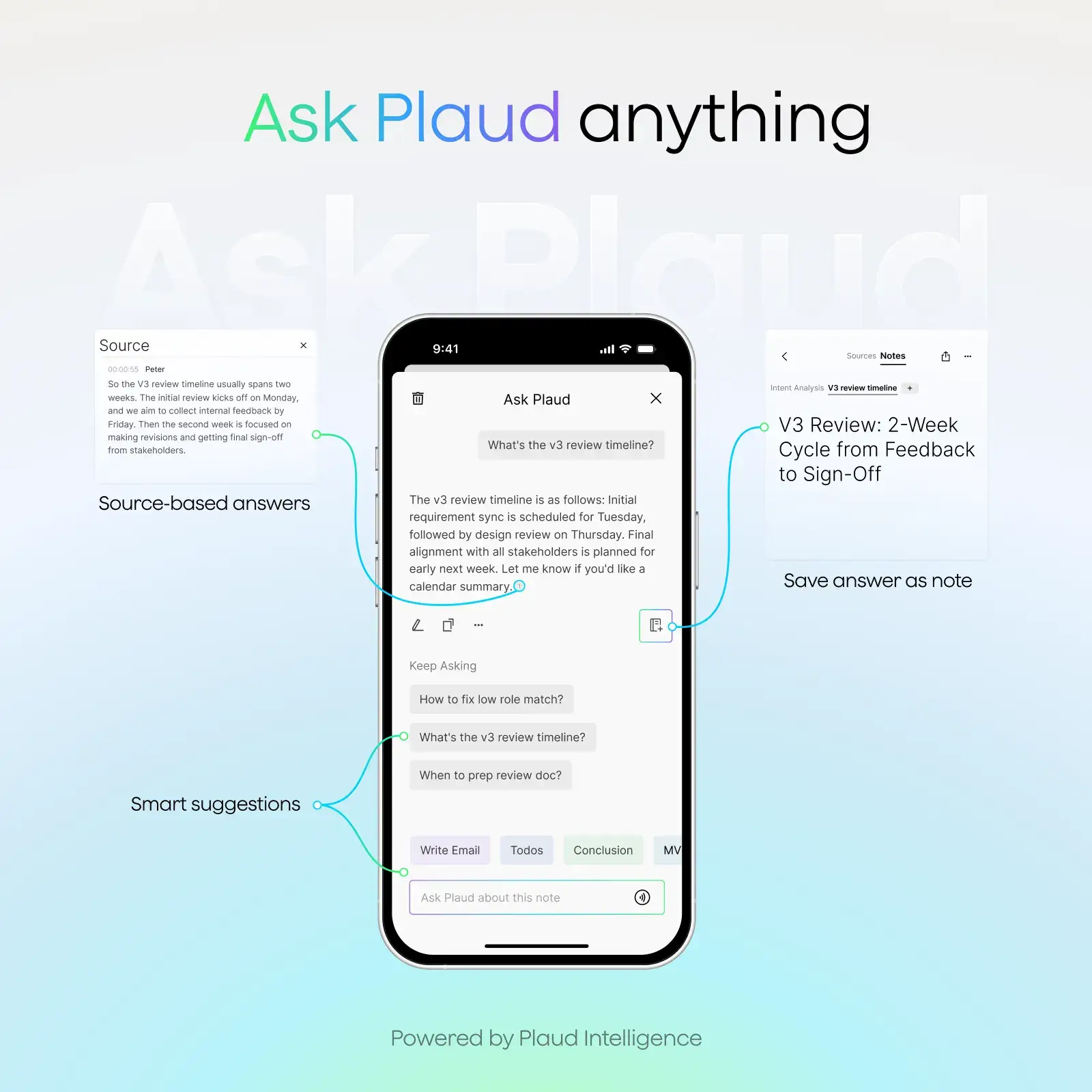
Plaud Note includes an AI Q&A feature that lets you interrogate your transcript:
- Open the processed recording.
- Look for the Ask AI or Chat feature.
- Type a question related to the content of the transcript. For example:
- "What were the three main objections the client raised?"
- "Summarize John's feedback on the budget proposal."
- "What deadlines were mentioned?"
The AI will search through the transcript and provide a focused answer.
Current limitation and workaround: Some users have expressed a feature request for more in-depth responses from this Q&A feature. If you find the initial response too surface-level, try these strategies:
- Be more specific with your questions. Instead of asking "What was discussed about marketing?" try "What specific marketing channels were recommended and what budget was allocated to each?"
- Ask follow-up questions. Break complex queries into smaller, sequential questions.
- Use the transcript directly. If the AI Q&A doesn't go deep enough, use your phone's search function (Ctrl+F equivalent) within the transcript to find specific keywords.
Step 7: Export and Distribute Your Notes
This is an area where many users want more flexibility. Currently, the most streamlined export options within the app may not include direct PDF or Word document generation — a common feature request among power users. Here's how to work around that:
Method A: Copy and Paste
- Open your AI summary or transcript.
- Select all text and tap Copy.
- Paste into Google Docs, Microsoft Word, Apple Notes, or any text editor.
- Format as needed and export as PDF or .docx.
Method B: Share via App
- Tap the Share icon within the Plaud Note app.
- Choose your preferred sharing destination (email, messaging apps, cloud storage).
- The content is typically shared as plain text, which you can then format in your preferred tool.
Method C: Use Automation Tools
- If you use tools like Zapier or Shortcuts (iOS), you can set up automations that take shared text and automatically convert it into formatted documents.
- Pair Plaud Note's output with a tool like Notion, which can easily export to PDF or Markdown.
Note: Plaud is actively developing the platform based on user feedback. The ability to export directly as PDF or Word is a widely requested feature and may be available in future updates.
Tips and Best Practices for Maximum Ease of Use
- Label your recordings immediately. After stopping a recording, rename it in the app with the date, participants, and topic. This makes searching later much easier.
- Use templates consistently. If you primarily record meetings, always use the meeting notes template for your AI summary. Consistency makes it easier to compare notes across sessions.
- Charge before every important session. Plaud Note has excellent battery life, but you don't want to risk running out mid-recording.
- Update the app regularly. New features, improved transcription accuracy, and bug fixes are released frequently.
- Combine AI summary with manual review. The AI is excellent, but spending two minutes reviewing the summary against your memory of the conversation ensures nothing critical slips through.
Common Mistakes to Avoid
- Recording in noisy environments without adjusting placement. Background noise is the number one killer of transcription accuracy. Move the device closer to speakers or choose a quieter space.
- Not syncing before starting a new recording. If you record multiple sessions without syncing, you risk a backlog that takes longer to process.
- Asking vague questions in the AI Q&A. The more specific your question, the better the response. Avoid broad queries.
- Ignoring speaker labels. If speaker identification is off, correct it early. Some AI features use speaker labels to attribute action items and summaries accurately.
- Expecting perfect transcription of heavy jargon. If you work in a specialized field, review and correct technical terms in the transcript. Over time, you'll develop a sense of what the AI handles well and where manual edits are needed.
- Forgetting to review the to-do list. The checklist is only useful if you act on it. Build a habit of reviewing action items within an hour of every recorded session.
Frequently Asked Questions
1. How accurate is Plaud Note's transcription?
Plaud Note delivers impressive transcription accuracy, especially in environments with clear audio and minimal background noise. Most users report accuracy rates above 90% for standard conversations. Accuracy can dip with heavy accents, overlapping speakers, or significant background noise, but the AI continues to improve with regular updates.
2. Can I export Plaud Note transcripts as PDF or Word documents?
Currently, direct PDF or Word export may not be available as a built-in feature — this is a popular feature request from the user community. However, you can easily copy your transcript or AI summary text and paste it into Google Docs, Microsoft Word, or other editors, then export from there. Check for app updates, as this functionality may be added soon.
3. How do I get more detailed answers from the AI Q&A feature?
To get deeper, more useful responses, ask specific and targeted questions rather than broad ones. Break complex queries into multiple smaller questions, and reference specific topics, names, or timeframes mentioned in the recording. This helps the AI zero in on the most relevant portions of the transcript.
4. Is Plaud Note easy to use for non-technical users?
Absolutely. Plaud Note is designed with ease of use as a core principle. The device has a simple one-button recording interface, and the app guides you through syncing, transcription, and AI features with intuitive prompts. Most users are comfortable with the full workflow within their first or second recording session.
5. What types of recordings work best with Plaud Note?
Plaud Note excels with meetings, interviews, lectures, phone calls, and one-on-one conversations. Any scenario where you need an accurate record of spoken content — along with intelligent summarization and action item extraction — is a great fit for the device.
Conclusion: Unlock the Full Power of Your Plaud Note
Plaud Note is more than just a recording device — it's an AI-powered productivity system that captures, transcribes, summarizes, and organizes your conversations with remarkable precision. From the spot-on AI summary breakdowns to the actionable to-do checklists, it transforms how you handle information from meetings, calls, and lectures.
While there's room for improvement — particularly around direct document export and deeper AI Q&A responses — the current feature set is already a significant upgrade over traditional note-taking. And with Plaud actively listening to user feedback and feature requests, the product is only getting better.
The key to getting the most out of Plaud Note is using it intentionally: position it well, leverage every AI feature, review your outputs, and build it into your daily workflow.
If you haven't already experienced what AI-powered note-taking can do for your productivity, now is the time to start.
👉 Get your Plaud Note today and transform the way you capture and act on every important conversation.
Further Reading: