Main Guide:How to Get the Most Out of Your Plaud Note: A Complete Guide to Customer Support, Recording Quality, Portability, and Design Related:Plaud Note Setup Guide: AI Summary, Meeting Recording, and Personal Productivity Tips
How to Turn Plaud Note Into Your Personal Executive Assistant with AI Summary, Mind Maps, and Custom Templates
Most professionals spend an average of 23 hours per week in meetings — and yet, the majority walk away without clear action items, miss critical details, or waste even more time writing up minutes of meeting (MOM) notes manually. If you've ever left a meeting thinking, "Wait, what did we actually decide?" — you're not alone.
The Plaud Note AI recording device promises to solve this problem with accurate transcripts, intelligent AI summaries, auto-generated mind maps, and customizable prompt-based templates. But here's the thing: most users only scratch the surface of what this device can do. They use it as a basic recorder when it's capable of functioning as a full-fledged executive assistant.
In this comprehensive guide, you'll learn exactly how to set up your Plaud Note, optimize your meeting recording workflow, leverage transcription accuracy features, and unlock advanced capabilities like mind maps and custom templates that transform raw recordings into executive-ready deliverables.
Whether you're a project manager, executive, freelancer, or student, this step-by-step walkthrough will help you get maximum value from your Plaud Note — starting today.
Prerequisites: What You Need Before Getting Started
Before diving into the setup and workflow, make sure you have the following:
- Plaud Note device — fully charged ([Get yours here])
- Plaud Note app — downloaded on your iOS or Android smartphone
- A Plaud account — created and verified via the app
- Active subscription plan — While basic features are available for free, the AI summary, mind map generation, and custom template features require a subscription plan. We recommend the Pro plan for the full executive assistant experience.
- A stable internet connection — Transcription and AI processing happen in the cloud, so you'll need connectivity when syncing and processing recordings.
- A clear understanding of your meeting types — Knowing whether you're recording one-on-one calls, team standups, client presentations, or brainstorming sessions will help you choose the right templates later.
Step-by-Step Guide: From First Recording to Executive Assistant
Step 1: Unbox and Charge Your Plaud Note
The Plaud Note comes in a slim, credit-card-sized form factor. Before your first use:
- Remove the device from its packaging.
- Connect it to a power source using the included charging cable.
- Wait for the indicator light to show a full charge (typically 1–2 hours for the first charge).
- The device offers impressive battery life — enough for several hours of continuous meeting recording on a single charge.
Pro tip: Make it a habit to charge your Plaud Note overnight before important meeting days so you never run out of power mid-session.
Step 2: Download the Plaud Note App and Create Your Account
The app experience is where the magic truly happens. The Plaud Note device captures the audio, but the app handles transcription accuracy, AI summary generation, mind maps, and templates.
- Go to the App Store (iOS) or Google Play Store (Android).
- Search for "Plaud Note" and download the official app.
- Open the app and create an account using your email or sign in with Google/Apple.
- Follow the on-screen prompts to pair your Plaud Note device via Bluetooth.
- Grant the necessary permissions (microphone, Bluetooth, notifications).
Once paired, your device and app will sync automatically whenever they're in proximity.
Step 3: Configure Your Recording Settings for Maximum Transcription Accuracy
Before your first meeting recording, take a few minutes to optimize your settings:
- Open the app and navigate to Settings > Recording Preferences.
- Select the recording language — Plaud Note supports multiple languages. Choosing the correct primary language dramatically improves transcription accuracy.
- Enable speaker identification — If your meetings involve multiple participants, turn on speaker diarization so the transcript labels who said what.
- Choose audio quality — Select the highest quality option available. Higher quality audio input leads to more accurate transcripts.
- Set your default meeting type — This helps the AI summary engine understand context and generate more relevant summaries.
These settings form the foundation of accurate, useful output. Spending five minutes here saves hours of manual editing later.
Step 4: Record Your First Meeting
Now it's time to put the Plaud Note to work:
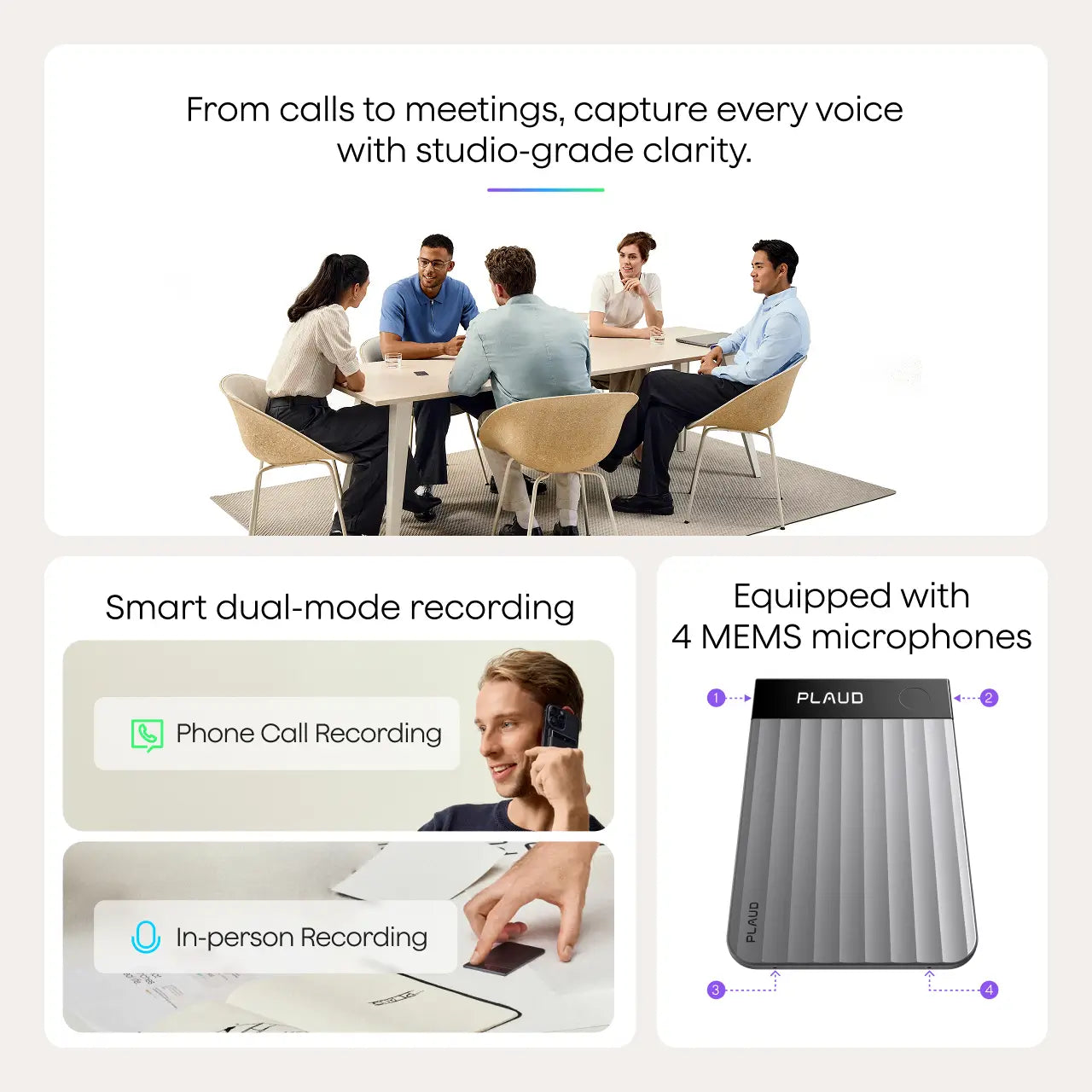
- Position the device strategically — Place it in the center of the table for in-person meetings, or attach it to the back of your phone for virtual calls. The device's microphone is optimized for voice capture at reasonable distances.
- Press the record button on the Plaud Note device (single press to start).
- Confirm recording status — A subtle LED indicator will show that recording is active. You can also check the app for real-time status.
- Don't worry about taking notes — This is the liberating part. Focus entirely on the conversation. The device is capturing everything.
- Press the button again to stop recording when the meeting ends.
The recording is stored locally on the device and will sync to the app automatically.
Step 5: Sync and Generate Your AI-Powered Transcript
After your meeting:
- Open the Plaud Note app — the recording should appear in your library within seconds.
- Tap on the recording to begin processing.
- Select "Transcribe" — The AI engine will process your audio and generate a full text transcript.
- Review the transcript — You'll notice the transcription accuracy is remarkably high, especially in clear audio environments. Speaker labels, timestamps, and paragraph breaks are applied automatically.
As one verified user noted: "Accurate transcripts and excellent summary of meetings" — and in our experience, this holds true across a variety of meeting types and environments.
Step 6: Generate an AI Summary of Your Meeting
This is where Plaud Note starts to feel less like a recorder and more like an executive assistant:
- From the transcript view, tap the "AI Summary" button.
- Choose your summary style — Options typically include key points, action items, decisions made, and full narrative summary.
- Wait a few seconds — The AI processes the entire transcript and produces a clean, structured summary.
- Review and edit — While the AI summary is excellent out of the box, you can make quick edits to add context or correct any nuances.
The AI summary feature alone can save you 30–60 minutes per meeting that you'd otherwise spend writing minutes manually.
Step 7: Explore the Mind Map Feature
The mind map functionality is described by users as a "welcome bonus" — and for good reason. It visually organizes the themes, topics, and relationships discussed in your meeting:
- From your processed recording, tap "Mind Map".
- The AI analyzes the transcript and generates a visual mind map with the main topic at the center and subtopics branching outward.
- Interact with the mind map — Tap on nodes to expand or collapse branches. This is incredibly useful for reviewing complex brainstorming sessions or strategy meetings.
- Export or share — You can save the mind map as an image or PDF for inclusion in presentations or team communications.
Mind maps are particularly powerful for:
- Brainstorming sessions — See all ideas at a glance.
- Strategy meetings — Understand the relationships between decisions.
- Client calls — Quickly identify key concerns and requests.
Step 8: Create Custom Prompt-Based Templates (The Game-Changer)
This is the feature that transforms Plaud Note from a simple MOM (minutes of meeting) tool into a true executive assistant. Custom prompt-based templates allow you to tell the AI exactly what kind of output you want:
-
Navigate to Settings > Templates in the app.
-
Tap "Create New Template".
-
Write your custom prompt — This is essentially an instruction to the AI about how to process your transcript. Here are some powerful examples:
- Executive Briefing Template: "Summarize this meeting in 5 bullet points suitable for a C-suite executive. Include only strategic decisions, risks identified, and required approvals."
- Client Follow-Up Email Template: "Draft a professional follow-up email based on this meeting. Include a thank-you, key discussion points, agreed-upon next steps, and deadlines."
- Sprint Retrospective Template: "Organize this meeting into three sections: What went well, What needs improvement, and Action Items with assigned owners."
- Sales Call Analysis Template: "Identify the prospect's pain points, objections raised, buying signals, and recommended next steps for the sales team."
-
Save the template with a descriptive name.
-
Apply it to any recording — After transcription, simply select your custom template, and the AI will reformat the content accordingly.
This feature is incredibly powerful because it means you can process the same recording in multiple ways. A single client meeting can generate a formal MOM, a follow-up email, AND an internal strategy brief — all automatically.
Step 9: Organize, Export, and Share Your Outputs
- Tag and categorize your recordings by project, client, or meeting type within the app.
- Export transcripts, summaries, and mind maps in formats like PDF, TXT, or DOCX.
- Share directly via email, Slack, or other communication tools from within the app.
- Build a searchable archive — Over time, your Plaud Note library becomes a searchable knowledge base of every important conversation you've had.
Tips and Best Practices for the Best App Experience
- Always test placement before important meetings. Do a 30-second test recording and play it back to ensure audio quality is sufficient.
- Name your recordings immediately after the meeting ends. It takes 5 seconds and saves confusion later.
- Create templates for your recurring meetings. If you have a weekly standup, a monthly board meeting, and regular client calls, build a template for each.
- Review AI summaries within 24 hours while the meeting is still fresh in your memory. This allows you to catch any nuances the AI may have missed.
- Use mind maps for meeting preparation too. Review a previous meeting's mind map before a follow-up to quickly refresh your memory.
- Keep the device firmware and app updated. Plaud regularly improves transcription accuracy and adds features through updates.
Common Mistakes to Avoid
- Placing the device too far from speakers — This is the #1 cause of reduced transcription accuracy. Keep the Plaud Note within 3–5 feet of the speaker(s) whenever possible.
- Recording in extremely noisy environments without adjustments — Background noise (coffee shops, open offices) can degrade quality. Use the noise optimization settings or find a quieter space.
- Ignoring custom templates — Many users stick with default summaries and never explore templates. This is like buying a smartphone and only using it to make calls. Templates are what make Plaud Note an executive assistant.
- Not reviewing transcripts — While transcription accuracy is excellent, no AI is perfect. A quick review ensures critical names, numbers, and technical terms are captured correctly.
- Forgetting to sync before traveling — If you're going somewhere without reliable internet, make sure all recordings are synced and processed beforehand.
- Using the wrong language setting — If your meetings are in a different language than the default, you'll get poor results. Always double-check before recording.
Frequently Asked Questions (FAQ)
How accurate is Plaud Note's transcription?
Plaud Note delivers highly accurate transcription, especially in clear audio environments. Users consistently report that the transcription accuracy is excellent for professional meeting settings. As one five-star reviewer noted, transcripts are "accurate" and summaries are "excellent." For best results, position the device close to speakers and minimize background noise.
Can I use Plaud Note for phone calls and virtual meetings?
Yes. The Plaud Note can be attached to the back of your phone to record phone calls (where legally permitted). For virtual meetings on platforms like Zoom, Teams, or Google Meet, you can place the device near your computer speakers or use the phone attachment method. Always check local laws regarding recording consent.
What are prompt-based templates and how do they work?
Prompt-based templates are custom instructions you write that tell the AI how to process your transcript. Instead of getting a generic summary, you can create templates that generate specific outputs — like executive briefings, follow-up emails, or project status reports. This feature is what elevates Plaud Note from a basic meeting recorder to a versatile executive assistant.
Do I need a subscription to access AI summary and mind map features?
Basic recording and transcription features are available with the free tier, but advanced features like AI summary generation, mind maps, and custom prompt-based templates typically require a paid subscription plan. Check the Plaud Note app for current pricing and plan details.
How does the mind map feature work?
After your recording is transcribed, the AI analyzes the content and automatically generates a visual mind map that organizes the meeting's topics, subtopics, and key points into an intuitive branching diagram. You can interact with it, expand or collapse sections, and export it for sharing with your team.
Conclusion: Your Meetings Deserve Better
The gap between attending a meeting and actually capturing its value is enormous — and it's a gap that costs professionals hours every single week. The Plaud Note bridges that gap with a combination of reliable hardware and genuinely intelligent software.
But as we've shown in this guide, the real power isn't just in the recording or even the transcription accuracy. It's in the layers of intelligence built on top: the AI summaries that distill hour-long discussions into actionable briefs, the mind maps that visually organize complex conversations, and — most importantly — the custom prompt-based templates that let you shape the AI's output to match your exact workflow.
As one power user put it perfectly: "Ability to create prompt-based templates turns this from a MOM tool into an Executive Assistant."
If you're ready to reclaim your time, never miss a meeting detail again, and turn every conversation into structured, actionable output, the Plaud Note is the tool to do it.
👉 [Get your Plaud Note today and start working smarter, not harder.]
This guide is regularly updated to reflect the latest Plaud Note features and best practices. Last updated: 2025.
Further Reading: