How to Turn Plaud Note Into Your AI Executive Assistant for Meeting Recording and Transcription
If you've ever walked out of a meeting scrambling to remember key decisions, action items, or who said what, you're not alone. Professionals lose an estimated 25–50% of meeting content within 24 hours — and traditional note-taking rarely captures the full picture.
That's where Plaud Note comes in. More than just a meeting recording device, Plaud Note combines AI-powered transcription accuracy, intelligent AI summary features, mind maps, and customizable prompt-based templates to function as a full-fledged executive assistant in your pocket.
In this comprehensive guide, you'll learn exactly how to set up Plaud Note, optimize your meeting recording workflow, and leverage advanced features like mind maps and custom templates — transforming a simple minutes-of-meeting (MOM) tool into a powerhouse app experience that saves you hours every week.
What You'll Need Before Getting Started
Before diving into the step-by-step process, make sure you have the following:
- Plaud Note device — Get yours here if you haven't already
- Plaud Note mobile app — Available on iOS and Android
- A stable Bluetooth connection — Your smartphone needs Bluetooth enabled to sync with the device
- A Plaud account — You'll create this during the app setup process
- An upcoming meeting or recording scenario — Have a real use case ready so you can practice with purpose
- Optional: A quiet test environment — Ideal for your first test recording to evaluate transcription accuracy
Step-by-Step Guide: Setting Up and Mastering Plaud Note
Step 1: Unbox and Charge Your Plaud Note Device
Start by unboxing your Plaud Note and giving it a full charge. The device charges via its built-in connector, so simply attach it to a compatible power source. A full charge typically takes about an hour and provides substantial recording time.
Pro tip: While the device charges, download the Plaud Note app from the App Store or Google Play so you're ready to pair immediately.
Step 2: Download the Plaud Note App and Create Your Account
The Plaud Note app experience is where the magic happens. All of your recordings, transcriptions, summaries, and mind maps live inside this app.
- Open the App Store (iOS) or Google Play (Android)
- Search for "Plaud Note"
- Download and install the app
- Open the app and create your account with your email or sign in with an existing account
- Grant the necessary permissions (Bluetooth, notifications, microphone access)
The app interface is clean and intuitive, making it easy even for first-time users to navigate.
Step 3: Pair Your Plaud Note Device via Bluetooth
With the app installed and your device charged:
- Turn on Bluetooth on your smartphone
- Power on the Plaud Note device
- In the app, tap the device pairing option
- Select your Plaud Note from the list of available devices
- Confirm the pairing
Once paired, your device and app will sync automatically whenever they're in proximity. This seamless connection is key to the smooth app experience that users rave about.
Step 4: Configure Your Recording Settings for Optimal Transcription Accuracy
Before your first meeting, take a few minutes to configure your recording preferences. This step is critical for maximizing transcription accuracy.
- Open the Plaud Note app
- Navigate to Settings
- Set your primary language — this ensures the AI transcription engine is calibrated for the correct language and dialect
- Choose your recording mode — Plaud Note typically offers modes optimized for different environments (e.g., meetings, lectures, one-on-one conversations)
- Adjust audio quality settings — Higher quality yields better transcription accuracy, though it uses more storage
Key insight from real users: Users consistently report that Plaud Note delivers "accurate transcripts" — and proper initial configuration is a big reason why.
Step 5: Record Your First Meeting
Now it's time to put Plaud Note to work in a real meeting recording scenario.
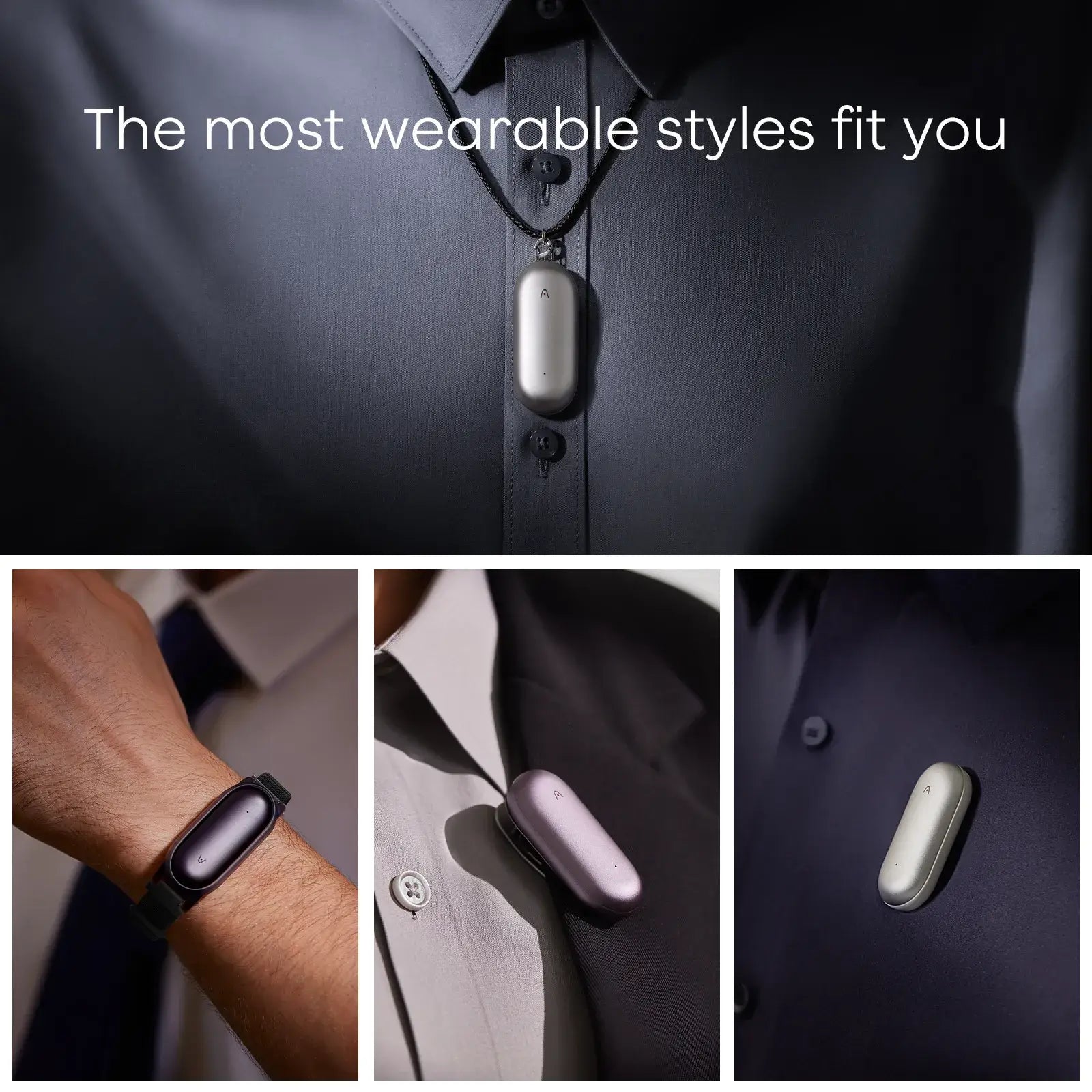
- Place the Plaud Note device on the table or attach it to your clothing (it's designed to be compact and discreet)
- Position it centrally if multiple people will be speaking — this improves audio pickup and, consequently, transcription accuracy
- Press the record button on the device to start recording
- Let the meeting proceed naturally — no need to take frantic handwritten notes
- Press the button again to stop recording when the meeting concludes
Placement matters: For conference rooms, center of the table works best. For one-on-one meetings, keeping it between you and the other person is ideal. For phone calls, the device can be attached to the back of your phone.
Step 6: Sync and Review Your AI-Generated Transcript
After your meeting ends, the real power of Plaud Note kicks in:
- Open the Plaud Note app
- The recording will sync automatically (or tap to manually sync)
- The AI engine will process the audio and generate a full transcript
- Review the transcript in the app — you'll notice speaker identification, timestamps, and remarkably accurate text
The transcription accuracy is one of the standout features. The AI handles different accents, technical jargon, and natural speech patterns with impressive precision. Users consistently highlight "accurate transcripts" as a defining benefit.
Step 7: Generate an AI Summary of Your Meeting
Here's where Plaud Note starts to feel less like a recorder and more like an executive assistant:
- With your transcript open, look for the AI Summary option
- Tap to generate the summary
- The AI will distill your entire meeting into key points, decisions made, action items, and important highlights
- Review the summary and make any minor edits if needed
The AI summary feature saves enormous time. Instead of re-reading a 60-minute transcript, you get a concise, actionable overview in seconds. As one enthusiastic user put it, the summary feature provides an "excellent summary of meetings" every single time.
Step 8: Explore the Mind Map Feature
One of Plaud Note's most underrated features is its Mind Map generation:
- After your transcript and summary are generated, look for the Mind Map option
- Tap to create a visual mind map of your meeting
- The AI organizes key topics, subtopics, and relationships into a visual diagram
- Use this mind map for presentations, project planning, or simply to understand the flow and structure of the discussion
Real users describe the Mind Maps feature as a "welcome bonus" — it's one of those features you didn't know you needed until you see it in action. It's particularly powerful for strategic meetings, brainstorming sessions, and complex multi-topic discussions.
Step 9: Create Custom Prompt-Based Templates
This is the feature that elevates Plaud Note from a meeting recorder to a true AI executive assistant:
- Navigate to the Templates section in the app
- Create a new template using custom prompts
- Define what information you want the AI to extract — for example:
- "List all action items with assigned owners and deadlines"
- "Summarize budget discussions and financial decisions"
- "Extract all client feedback and categorize by sentiment"
- "Identify risks mentioned during the project review"
- Save your template for repeated use
- Apply the template to any recording to get structured, consistent output
This is a game-changer. As experienced users note, the "ability to create prompt-based templates turns this from a MOM tool into an Executive Assistant." You can create templates for different meeting types — board meetings, sales calls, project standups, one-on-ones — and get perfectly structured output every time.
Step 10: Organize, Export, and Share Your Meeting Intelligence
Finally, put your meeting intelligence to work:
- Organize recordings in the app using folders or tags
- Export transcripts, summaries, and mind maps in your preferred format
- Share outputs directly with team members via email, messaging apps, or cloud storage
- Build a searchable archive of all your meetings for future reference
Tips and Best Practices for Getting the Most Out of Plaud Note
- Test before high-stakes meetings: Do a practice recording in your actual meeting room to understand how the device performs in that acoustic environment.
- Minimize background noise: While Plaud Note handles ambient noise well, less noise always means better transcription accuracy.
- Create templates proactively: Before a meeting, set up a relevant template so the AI knows exactly what to extract.
- Review summaries promptly: Check your AI summary shortly after the meeting while context is fresh, so you can catch any nuances the AI might have missed.
- Use mind maps for follow-ups: Share the mind map with attendees as a visual meeting recap — it's more engaging than a wall of text.
- Keep firmware and app updated: Plaud regularly improves its AI models, so updates often bring better transcription accuracy and new features.
- Leverage the device's form factor: Plaud Note is designed to be unobtrusive. Use it confidently in client meetings, interviews, and professional settings.
Common Mistakes to Avoid
- Placing the device too far from speakers — Distance is the number one enemy of transcription accuracy. Keep the device within reasonable range of all participants.
- Skipping the language/dialect configuration — If you're in a multilingual environment or have a specific dialect, make sure the app is configured correctly.
- Not using custom templates — Many users treat Plaud Note as a simple recorder and never explore prompt-based templates. This is like buying a smartphone and only using it to make calls.
- Forgetting to charge before important meetings — It sounds obvious, but always check your battery level before critical recordings.
- Ignoring the mind map feature — Mind Maps provide structural clarity that text summaries can't match. Use them, especially for complex discussions.
- Recording without consent — Always inform meeting participants that you're recording. It's both a legal requirement in many jurisdictions and a professional courtesy.
Frequently Asked Questions
Q1: How accurate is the Plaud Note transcription?
Plaud Note delivers highly accurate transcripts, especially when the device is properly positioned and the language settings are correctly configured. Users consistently praise the transcription accuracy, noting that it captures technical terminology, natural conversation flow, and multiple speakers with impressive fidelity. For best results, minimize background noise and place the device centrally among speakers.
Q2: Can Plaud Note summarize meetings automatically?
Yes! One of Plaud Note's standout features is its AI summary capability. After recording and transcribing a meeting, you can generate a concise summary with a single tap. The AI distills the full conversation into key points, decisions, and action items. Users describe the summaries as "excellent" and a major time-saver.
Q3: What are prompt-based templates and how do they work?
Prompt-based templates allow you to define custom instructions for how the AI should process your recordings. For example, you can create a template that says "Extract all action items with owners and deadlines" or "Summarize only the financial discussions." This feature transforms Plaud Note from a basic meeting minutes tool into a personalized executive assistant that outputs exactly the information you need.
Q4: Does Plaud Note work for phone calls and in-person meetings?
Absolutely. Plaud Note is versatile enough for various meeting recording scenarios. For in-person meetings, place the device on the table. For phone calls, the device can attach magnetically to the back of your phone. The app experience is consistent across all recording types, and the AI processes all recordings with the same high level of accuracy.
Q5: How does the Mind Map feature enhance meeting documentation?
The Mind Map feature automatically generates a visual representation of your meeting's key topics, subtopics, and their relationships. It's particularly useful for brainstorming sessions, strategic planning meetings, and any discussion that covers multiple interconnected topics. Users call it a "welcome bonus" that adds significant value beyond traditional transcripts and summaries.
Conclusion: Transform Your Meeting Workflow Today
Plaud Note isn't just another recording gadget — it's a comprehensive AI-powered system that fundamentally changes how professionals capture, process, and act on meeting intelligence. From accurate transcription and AI-powered summaries to visual mind maps and custom prompt-based templates, every feature is designed to save you time and ensure nothing falls through the cracks.
Whether you're a busy executive juggling back-to-back meetings, a project manager tracking action items across multiple teams, or a consultant who needs detailed client meeting records, Plaud Note adapts to your workflow and delivers consistent, high-quality results.
The best part? Setting it up takes minutes, but the time it saves you compounds every single day.
Ready to turn your meeting chaos into organized, actionable intelligence? Get your Plaud Note today and experience the difference an AI executive assistant makes in your professional life.
This guide is based on real user experiences and hands-on evaluation of the Plaud Note device and app. Individual results may vary based on recording environment and configuration.
Further Reading: